Tuesday, April 24, 2012

ITIL ( IT Infrastructure Library)

ITIL stands for IT Infrastructure Library. ITIL was developed by the Central Computer and Telecommunications Agency (CCTA). It is a set of comprehensive and iter-related codes of practice. Such code of good practice is very useful in terms of achieving the efficient support and delivery. Its main asset is independency.

ITIL is accredited by Information Systems Examinations Board (ISEB). ISEB is an organization which prepares delegates for the ITIL Foundation Certificate in IT Service Management. The ISEB was formed in 1967 and currently functions under the support of the British Computer Society (BCS). The ISEB aims to provide industry-recognized qualification that measure skill, ability and performance in many areas of information systems.

EXIN is another organization which provides ITIL examination. IT is an independent organization, Dutch-based IT examination provider. EXIN establishes educational requirements, develops and organize examinations in the field of Information Technology.
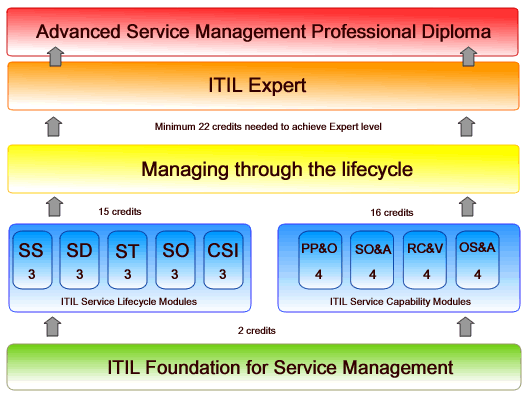
ITIL Foundation Certification is a first step to start the career in ITIL. This foundation certification is a gateway for the next certificates: practitioner and manager.
- It is multiple choice exam (only one answer is correct)
- It is a1 hour exam.
- Minimum passing score should be 26 out of 40 points.


Sunday, August 16, 2009

How to change Text on XP start button.

Step 1 - Modify Explorer.exe File

The file explorer.exe located at C:\Windows. It needs to be edited.

It is a binary file and requires special editor for modifying.

I have used Resource Hacker.

Resource Hacker is a freeware utility to view, modify, rename, add, delete and extract resources in 32bit Windows executable and resource files (*.res).

It incorporates an internal resource script compiler and decompiler and works on Microsoft Windows 95/98/ME, Windows NT, Windows 2000 and Windows XP operating systems.

You can get this from http://delphi.icm.edu.pl/ftp/tools/ResHack.zip

First of all you have to take backup of Explorer.exe, which is located at C:\Windows and place it in a folder somewhere on your hard drive where it will be safe.

Run Resource Hacker and open explorer.exe located at C:\Windows\explorer.exe.

Navigate to category "String Table". Expand it by clicking on the plus sign then goes to the string 37 followed by highlighting 1033. If you are using the Classic Layout rather than the XP Layout, use number 38. The right hand pane will display the string table. We’re going to modify item 578, currently showing the word “start” just as it displays on the current Start button.

Double click on the word “start”, making sure the quotation marks are not part of the highlight. They need to remain in place, surrounding the new text that you’ll type. Type your new entry.

After the new text string has been entered the Compile Script button that was grayed out. Now it is active.

Click on Compile Script and then save the altered file using the Save As command on the File Menu. Do not use the Save command – Make sure to use the Save As command and choose a name for the file. Save the newly named file to C:\Windows.


Step 2 – Modify the Registry

Make a backup of your registry before making any changes.

Go to the Start Run and type regedit. Navigate to:

HKEY_LOCAL_MACHINE\ SOFTWARE\ Microsoft\ Windows NT\ CurrentVersion\ Winlogon

In the right pane, double click the "Shell" entry to open the Edit String dialog box. In Value data: line, enter the name that was used to save the modified explorer.exe file. Click OK.

Close Registry Editor and either log off the system and log back in, or reboot the entire system if that’s your preference. If all went as planned you should see your new Start button with the revised text.


Sunday, July 12, 2009

Boot your Win xp Fast.


Sometime your PC or Laptop boot slowly after having good RAM and HDD. Last time we have seen how to enable fast shutdown. Now we are going to see "How enable fast boot in windows XP". I have mentioned some steps below which will help you.

Follow the following steps

1. Open notepad and type "del c:\windows\prefetch\ntosboot-*.* /q" (without the quotes) & save as "ntosboot.bat" in c:\.

2. Click on Start menu, select Run & type "gpedit.msc".

3. Go to "Computer Configuration" then "Windows Settings" and "script(startup/shutdown)".

4. Double click on "Shutdown" in the right window.

4. In the new window, click "add", "Browse", locate your "ntosboot.bat" file & click "Open".

5. Click on "OK", "Apply","OK" and close the group policy editor.

6. Again click on Start menu, select "Run" & type "devmgmt.msc".

7. Double click on "IDE ATA/ATAPI controllers"

8. Right click on "Primary IDE Channel" and select "Properties".

9. Select the "Advanced Settings" tab then on the device or 1 that doesn't have 'device type' grayed out select 'none' instead of 'autodetect' & click "OK".

10. Right click on "Secondary IDE channel", select "Properties" and repeat step 9.

11. Reboot your computer.

Note :- Please take technician help before doing above changes.

High Pagerank Google PR Link Directory - Transops.Net