Friday, April 27, 2012

Differences between LED and LCD display

There are mainly two types of displays are famous in people. One is LED and another LCD. LED stands for Light Emitting Diodes display and LCD is Liquid Crystal Display. Now a day’s peoples are confuse to decide which type of display is a good. That’s why I decided to publish the basic differences between LED and LCD displays.
 
LED TV is the newer modification of all current available displays.
 
Difference between LED and LCD display
-LED displays have better contrast ratio as compare to the LCD display.
-LCD display is unable to produce the dark areas of the images on the screen. Because of this, there is a loss of image quality. Whereas LED displays produces better black areas which in turn produces better contrast and clearer image.
-Color accuracy of LED display is very good than LCD.
-LED displays have much larger viewing angle as compare to LCD.
-LCD display beyond 30 degree angle from the center, the contrast ratio of the image start to diminish.
-LCD displays are available in the size range from 15inches to 65 inches whereas LED displays are available between 17inches and 70inches.
-Here in case of power consumption LED display consume more power than LCD display.
 
Above are the differences between LED and LCD display. Now it’s your choice which you selects both of one. It’s totally depending on your budget and requirement. LED is quite expensive the LCD display.
Tuesday, April 24, 2012

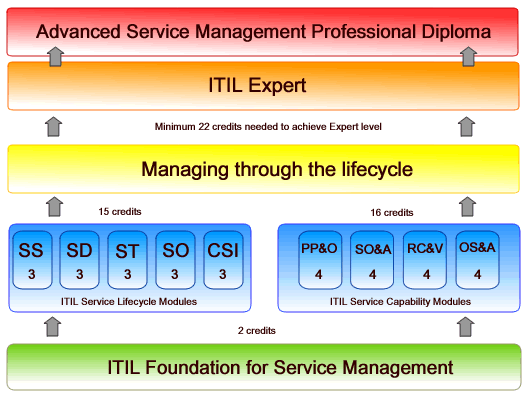
ITIL ( IT Infrastructure Library)

ITIL stands for IT Infrastructure Library. ITIL was developed by the Central Computer and Telecommunications Agency (CCTA). It is a set of comprehensive and iter-related codes of practice. Such code of good practice is very useful in terms of achieving the efficient support and delivery. Its main asset is independency.

ITIL is accredited by Information Systems Examinations Board (ISEB). ISEB is an organization which prepares delegates for the ITIL Foundation Certificate in IT Service Management. The ISEB was formed in 1967 and currently functions under the support of the British Computer Society (BCS). The ISEB aims to provide industry-recognized qualification that measure skill, ability and performance in many areas of information systems.

EXIN is another organization which provides ITIL examination. IT is an independent organization, Dutch-based IT examination provider. EXIN establishes educational requirements, develops and organize examinations in the field of Information Technology.
ITIL Foundation Certification is a first step to start the career in ITIL. This foundation certification is a gateway for the next certificates: practitioner and manager.
- It is multiple choice exam (only one answer is correct)
- It is a1 hour exam.
- Minimum passing score should be 26 out of 40 points.


Sunday, August 16, 2009

How to change Text on XP start button.

Step 1 - Modify Explorer.exe File

The file explorer.exe located at C:\Windows. It needs to be edited.

It is a binary file and requires special editor for modifying.

I have used Resource Hacker.

Resource Hacker is a freeware utility to view, modify, rename, add, delete and extract resources in 32bit Windows executable and resource files (*.res).

It incorporates an internal resource script compiler and decompiler and works on Microsoft Windows 95/98/ME, Windows NT, Windows 2000 and Windows XP operating systems.

You can get this from http://delphi.icm.edu.pl/ftp/tools/ResHack.zip

First of all you have to take backup of Explorer.exe, which is located at C:\Windows and place it in a folder somewhere on your hard drive where it will be safe.

Run Resource Hacker and open explorer.exe located at C:\Windows\explorer.exe.

Navigate to category "String Table". Expand it by clicking on the plus sign then goes to the string 37 followed by highlighting 1033. If you are using the Classic Layout rather than the XP Layout, use number 38. The right hand pane will display the string table. We’re going to modify item 578, currently showing the word “start” just as it displays on the current Start button.

Double click on the word “start”, making sure the quotation marks are not part of the highlight. They need to remain in place, surrounding the new text that you’ll type. Type your new entry.

After the new text string has been entered the Compile Script button that was grayed out. Now it is active.

Click on Compile Script and then save the altered file using the Save As command on the File Menu. Do not use the Save command – Make sure to use the Save As command and choose a name for the file. Save the newly named file to C:\Windows.


Step 2 – Modify the Registry

Make a backup of your registry before making any changes.

Go to the Start Run and type regedit. Navigate to:

HKEY_LOCAL_MACHINE\ SOFTWARE\ Microsoft\ Windows NT\ CurrentVersion\ Winlogon

In the right pane, double click the "Shell" entry to open the Edit String dialog box. In Value data: line, enter the name that was used to save the modified explorer.exe file. Click OK.

Close Registry Editor and either log off the system and log back in, or reboot the entire system if that’s your preference. If all went as planned you should see your new Start button with the revised text.


High Pagerank Google PR Link Directory - Transops.Net